Lesson 3 - The 5 Components of Information Technology

We all know somebody who works in IT.
But not everybody knows that IT is short for Information Technology.
Okay, now everybody knows!
In this article, we will look at the five components that make up IT:
- Data
- Hardware
- Software
- Networking
- People.
Information Technology
We have been keeping records for literally thousands of years.
And for those thousands of years, there was not a single computer in sight, and everyone was doing just fine.
The only difference these days is that the clay tablets and goatskins of yesteryear have been replaced with electronic devices we call computers.
What we do hasn't changed.
How we do it, however, has changed quite a bit.
Of course, they didn't call it IT back then.
The term Information Technology first appeared in 1958 in a Harvard Business Review article by Harold, Leavitt, and Thomas.
If you think about it, the main benefit we get from modern-day Information Technology is speed and blinking lights and stuff.
Information & Communications Technology
We now know that IT is short for Information Technology, which means that we use computers to do our dirty work for us.
Now, over time, telephone lines, in addition to sending analogue signals,
started to transfer digital data by giving zeros and ones each a distinct tone.
Remember how modems used to sound?
So, this transfer thing became part of the IT world,
and the whole caboodle became known as Information & Communications Technology or
ICT for short.
TechTarget puts it nicely when they say that ICT refers to all devices, networking components, applications, and systems that facilitate interaction with the digital world. For now, know that these days, when we say IT, we mean ICT.
Let’s now look at the five components that make up the IT world. Let's start with Data.
Data
The first component of Information Technology is data.
Information Technology is all about data. If there were no data, there would be no use for computers.
We do several things with data:
- We create data
- We store data
- We search data
- We retrieve data
- We display data
- We read data
- We update data
- We delete data
- We transfer data
- We validate data
- We calculate data
- We analyze data
The Request-Response Model
While here, I quickly want to cover the Request-Response Model as you are going to use this every day of your programming career.
During a Google search, for example, you send search criteria via a request from your browser to Google, which in turn validates your request and uses the criteria to search the Google databases.
Google then returns the result via a response to your browser.
This is known as the request-response model.
During the request and response cycle, data was created, transmitted, validated, searched, retrieved, transmitted, displayed, and read.
Data Explained
But what exactly is data?
Have a look at the table below:
| ? | ? | ? | ? |
|---|---|---|---|
| Susan | Dog | Cat | 84 |
Here we have four words, Susan, dog, cat, and 65.
We call these words facts or data in the IT world.
Or is it ICT world?
One look at it, and we can deduce that Susan, an 84-year-old person, has two pets, a cat and a dog.
Or is it?
Let's go and ask Susan.
Staring at us angrily, she asks, "Do I look 84 to you? You cannot just make up stuff like this! It's outrageous! Your data has no context!"
Your data has no context!
And there is the problem.
We have the data, but we do not have context.
How do we get context?
We get context by adding meaning to the data.
And only Susan can tell us the meaning of this data as this data belongs to her.
After Susan explained to us the meaning behind this data, we updated the table as follows:
| Pet Owner | Pet Type | Pet Name | Pet Age |
|---|---|---|---|
| Susan | Dog | Cat | 84 |
Now we learn that Susan has an 84-year-old dog named Cat.
It is Susan's dog; she can name it whatever she wants.
And yes, I know dogs do not get that old.
But maybe the unit of measurement is dog years, and not human years.
So we asked Susan what unit of measurement she used for the dog's age, and updated our table accordingly.
| Pet Owner | Pet Type | Pet Name | Pet Age in Dog Years |
|---|---|---|---|
| Susan | Dog | Cat | 84 |
Now we learn that Susan has a 12-year-old dog named Cat.
By the way, we get the 12 by dividing the 84 by 7.
And I know that it is 7 because every time I get home after 1 hour, my dogs pretend that I have been away for the last 7 hours.
I know this is a silly example, but I am sure you now have a good idea of what data is and how important it is to add meaning (context) to it.
Without context, data is meaningless and most probably useless.
By the way, the term data is plural.
The singular for data is datum.
However, I cannot recall seeing the term datum used anywhere except in this specific paragraph.
So, going forward, I will use the term data.
Information Explained
Now that we more or less know what data is, we have to ask, "What is information then?"
Well, we have already answered this in the previous section.
Information is nothing more than data in context!
Without the context, we had four words, facts or data.
With the context added, we now know something about Susan and her old dog with the odd name.
That is information.
Knowledge Explained
Next, we can define knowledge as information in context.
No need to say more.
Just think about it a bit.
Wisdom Explained
Same here.
Wisdom is knowledge in context.
Again, just think about it a bit.
Hardware
The second component of Information Technology is hardware.
The term hardware refers to all the physical pieces such as computers, printers, scanners, keyboards, monitors, mice (mouses), hubs, switches, routers, etc.
Hardware is the stuff we can see and touch; it takes up space and sometimes is quite expensive and heavy.
Let’s look at some examples of hardware.
Client-Side Hardware
At work, there is a good chance you have a personal computer (or PC) on your desk.
We call these desktop computers because they sit on top of your desk.
As you can see, the intelligence of IT people is next level.
If your job requires you to travel often, you will probably have a laptop instead.
If you work for a fancy company, there will be a docking station on your desk where you can dock your laptop,
thereby turning your laptop into a desktop,
allowing you to work on a big monitor, a big keyboard, and a standard-size mouse.
It doesn’t make sense to have a big mouse as well.
To take your laptop with you, you simply undock it from the docking station, and you’re good to go.
Your computer usually needs to communicate with other computers (called servers) in the company.
We achieve this by connecting all computers in the company via a bunch of cables which we call a network.
These days, many organizations avoid cables altogether and use wireless network connections called Wi-Fi.
Server-Side Hardware
You can look at a server as a PC on steroids.
These servers are usually locked away in a separate room called a server room which only IT staff is allowed to enter.
These servers are typically assigned a single job.
Let’s look at some of the servers you may encounter when you enter a server room.
Domain Controllers
A network domain consists of all users, computers, and networks that form part of the same infrastructure.
The Domain Controller's job is to ensure that only authenticated users are allowed on the network.
These servers usually run on Linux or Microsoft Windows operating systems.
File Servers
Users create many files, such as Microsoft Word documents, Microsoft Excel spreadsheets, PowerPoint presentations, and PDF documents.
These files are stored on computers called File Servers.
These files are then visible to the owner only, to a group of users, or to everybody on the network.
These servers may not always have to be the fastest, but they have to have lots of storage space to accommodate all these files.
Mail Servers
Mail Servers send and receive email and also host the user mailboxes.
Microsoft Exchange is a popular piece of software running on these servers.
Web Servers
You are using a Web Server to read this post.
You sent a request to see this post, and the Web Server returned with a response in the form of this post.
Remember the request-response cycle from earlier?
As you can see, these servers run web-based applications such as the company’s website or custom-built web applications and APIs.
These servers usually communicate via the Hypertext Transfer Protocol or HTTP for short.
We will discuss HTTP in more detail later.
On these servers, you will encounter applications such as the Apache HTTP Server, Microsoft Internet Information Services (IIS), and the Nginx Web Server (pronounced engine-ex).
Their main task is to serve web pages or expose API endpoints. Much more on APIs later.
Application Servers
The web applications running on the Web Servers usually communicate with the business logic of applications running on the Application Servers.
These apps are generally purpose-built, such as calculating the order total for an Amazon order, for example.
In the case of an Insurance company, for example, an Application Server will host the quotation engines used to calculate insurance premiums.
And in the case of Netflix, for example, some apps on these servers will stream movies while others will handle subscription payments, etc.
Database Servers
Besides documents and spreadsheets stored on File Servers, companies generate a lot of business-specific data.
This data is persisted in databases that are usually hosted on Database Servers.
These servers need to be robust and must have substantial storage capabilities.
As databases are the source of truth for most businesses,
they need to be protected at all costs, and backed up at regular intervals.
These backups also need to be stored off-site.
It is senseless having your company burned down with data and all.
In the next course, Database Fundamentals, we will learn about database design and database performance.
Bad design usually leads to bad performance.
When a business application has performance issues, the database is usually the first place to investigate.
Please remember this as it will save you some headaches in the future.
DNS Servers
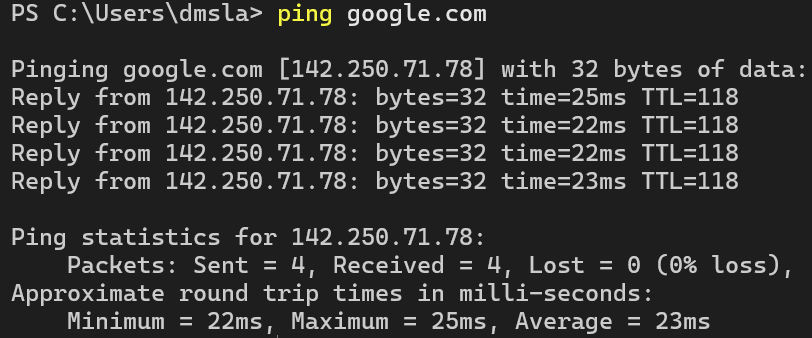
If you type the IP address 142.250.71.78 into the address bar in your browser, you will reach the Google website.
The thing is that nobody can remember 142.250.71.78, but everybody can remember google.com.
In the image below, I pinged google.com that then returned the IP Address 142.250.71.78.
This is where DNS servers come into play.
DNS is short for Domain Name System, and these guys will translate google.com to 142.250.71.78 for us.
Cloudflare calls it the Internet's phone book, which is quite a spot-on description.
By the way, these servers are not part of your company's local network.
They live happily on the Internet side of things.
DHCP Servers
In the previous paragraph, you saw that we could reach a computer at Google because we knew its IP address (142.250.71.78).
We asked the DNS Server to look up the IP address for us.
Similarly, each computer in a network needs a unique IP address.
Otherwise, it would be impossible for one computer to communicate with another.
This is where the DHCP server comes in.
DHCP is short for Dynamic Host Configuration Protocol, and this DHCP server assigns a unique IP address to each computer in the network.
That said, servers usually are manually assigned fixed IP addresses, whereas desktops will each receive an IP address from the DHCP server.
Once every computer has a unique address, communication between them can occur.
Once in a while, you may encounter an IP conflict where more than one computer has the same IP address.
That’s when you get on the phone and call the IT guys to come and fix!
FTP Servers
Sometimes you need to access or transfer files to a third-party computer, that is a computer that is not in your local network.
Usually, your company website is not hosted on your own network.
It is hosted on a server in the cloud called a hosting server.
So, when you change the local copy of your website, these changes then need to be uploaded to the hosting server.
To allow you to do that, the hosting company will give you controlled access to your website via the File Transfer Protocol (FTP).
Thus, your hosting server will act as an FTP Server.
You will then use an application such as FileZilla to connect to your hosting server to do the upload.
Proxy Servers
These servers usually sit between the company network and the Internet.
If a PC wants to access a computer outside the local network, it will send a request via the Proxy Server.
The response also comes back via the proxy server.
Working this way allows the proxy server to act as a firewall, protecting what goes out and what comes in.
Companies can use the proxy server, for example, to blacklist some sites and whitelist others.
Proxy servers are also used for temporary caching, speeding up access to external resources, and improving bandwidth use.
For example, an update of Microsoft Windows will be downloaded once and cached on the proxy server.
All the PCs on the network will then be updated from that single copy instead of each PC downloading a separate copy from Microsoft.
Backup Servers
Backup servers can be either on the local network or on remote networks and are used to facilitate the backup and restoration of important company files and databases.
Uninterruptible Power Supply
Each server is usually connected to an Uninterruptible Power Supply or UPS for short.
The UPS ensures clean power to the server by regulating voltage and,
depending on capacity, can keep the servers running in case of a power failure or power dip.
Network Printers
These are not servers but big printers that are available throughout departments for everybody on the network to print to.
Software
The third component of Information Technology is software.
Operating Systems
It is software that makes your computer do stuff.
The most critical software on any computer is the operating system or OS for short.
Without an Operating System, your computer is as dead as a doornail.
All other software applications, of which there are many, are executed and controlled by the operating system.
Examples of operating systems are Windows, Linux, Unix, macOS, Android, and iOS.
Office & Creative Applications
These are the general-purpose applications that are used daily by organizations.
You buy these applications off the shelf as they can be used by different types of businesses.
Here are a few examples:
- You use applications such as Microsoft Word, Google Docs, or Apple Pages to write letters.
- For spreadsheets, you use a program such as Microsoft Excel or Google Sheets.
- For presentation, you use Microsoft PowerPoint or Google Slides.
- If you touch up some photos, you use Adobe Photoshop or Gimp.
- If you want to browse the Internet, you use Microsoft Edge on Windows or Safari on macOS.
- You use Digital Audio Workstations (DAW) such as Logic Pro or Cubase record music.
- You use Premiere Pro or DaVinci Resolve to make movies with.
- And so the list goes on...
Custom Applications
These are the specific-purpose applications that are used daily by organizations.
I call the Business Information Systems.
This is also the area I specialize in.
Usually, you cannot buy these types of applications off the shelf,
as they are custom-built for specific types of businesses,
such as banking systems or commercial insurance systems, for example.
Gaming Applications
I am not a gamer, but I am sure the games can add their list of computer games here.
Client-Side and Server-Side Applications
Applications can be either Client-side or Server-side applications, running on desktops and servers respectively.
Most office-type applications are installed directly on the client PCs, hence Client-side.
In the section on hardware above,
we have already mentioned some of the applications running on servers, thus called Server-side applications.
To GUI or Not to GUI
Another way to categorize software is by visibility, I guess.
Some applications have a graphic user interface or GUI (pronounce goo-ee) for short.
The Microsoft Office Suite is a good example of software with a user interface.
We also have applications without a user interface.
These are usually called services and are running in the background.
Most users are blissfully unaware that they even exist.
For example, the PC I am typing on has over a hundred services running in the background.
Your antivirus software is a good example of this type of software.
Command Line Applications
Lastly, console applications run in the Command Line Interface or CLI for short.
These apps are usually utility-type applications that may do once-off maintenance, backups, or batch runs of some sort and are primarily used by IT personnel.
As a programmer,
you will become very familiar with the command line,
and I recommend you watch a few YouTube videos to familiarize you with the CLI.
Networking
The forth component of Information Technology is networking.
Local Area Network (LAN)
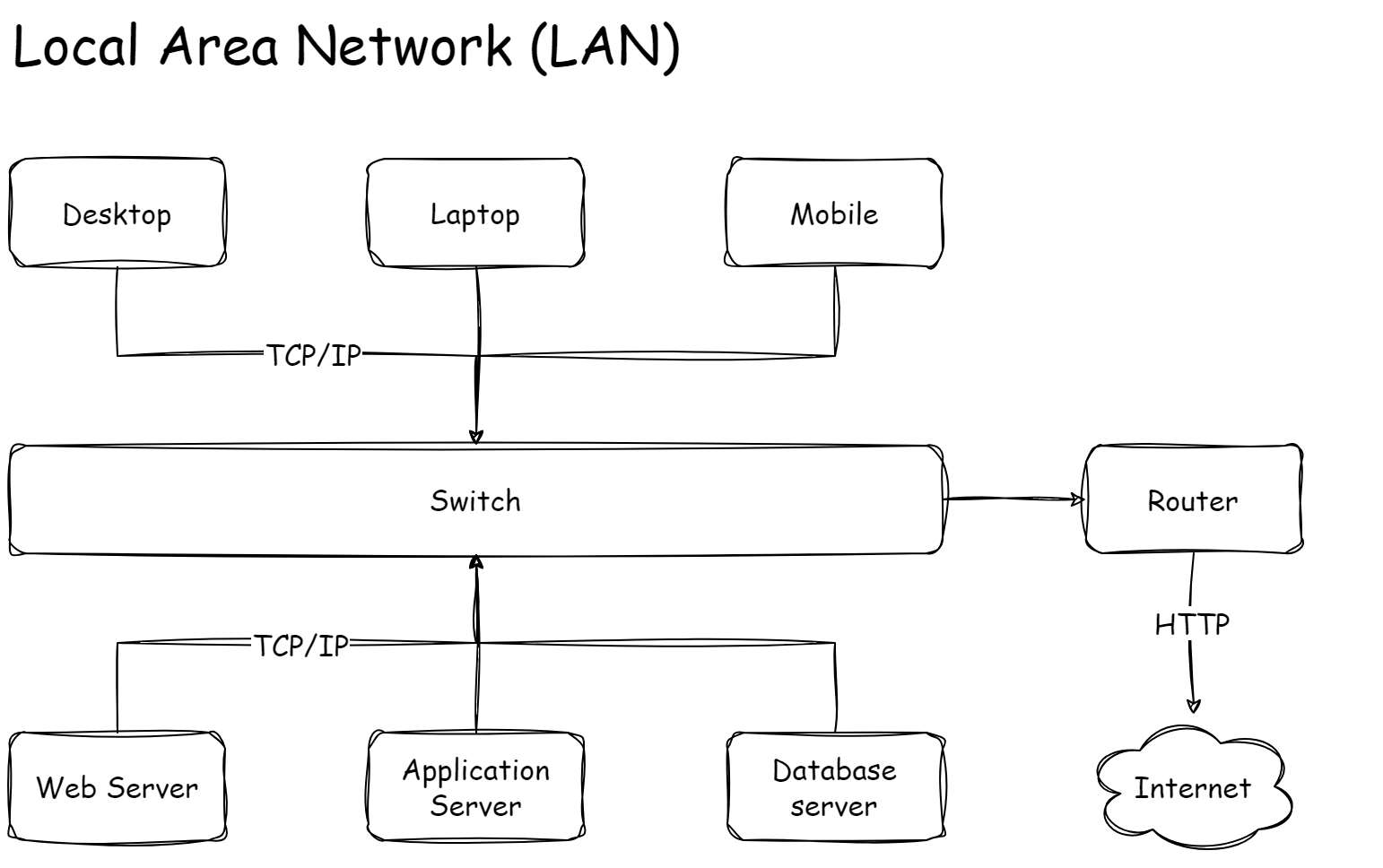
To allow communication between desktops and servers, we connect them all to form a network.
Each PC has a network interface card (NIC for short) that takes an RJ45 network cable.
This cable then connects to a network socket usually installed on the wall, from where a cable takes it to the switch.
This switch connects with the servers.
Once we have all computers in our company linked via the network, we call this a Local Area Network or LAN for short.
Wide Area Network (WAN)
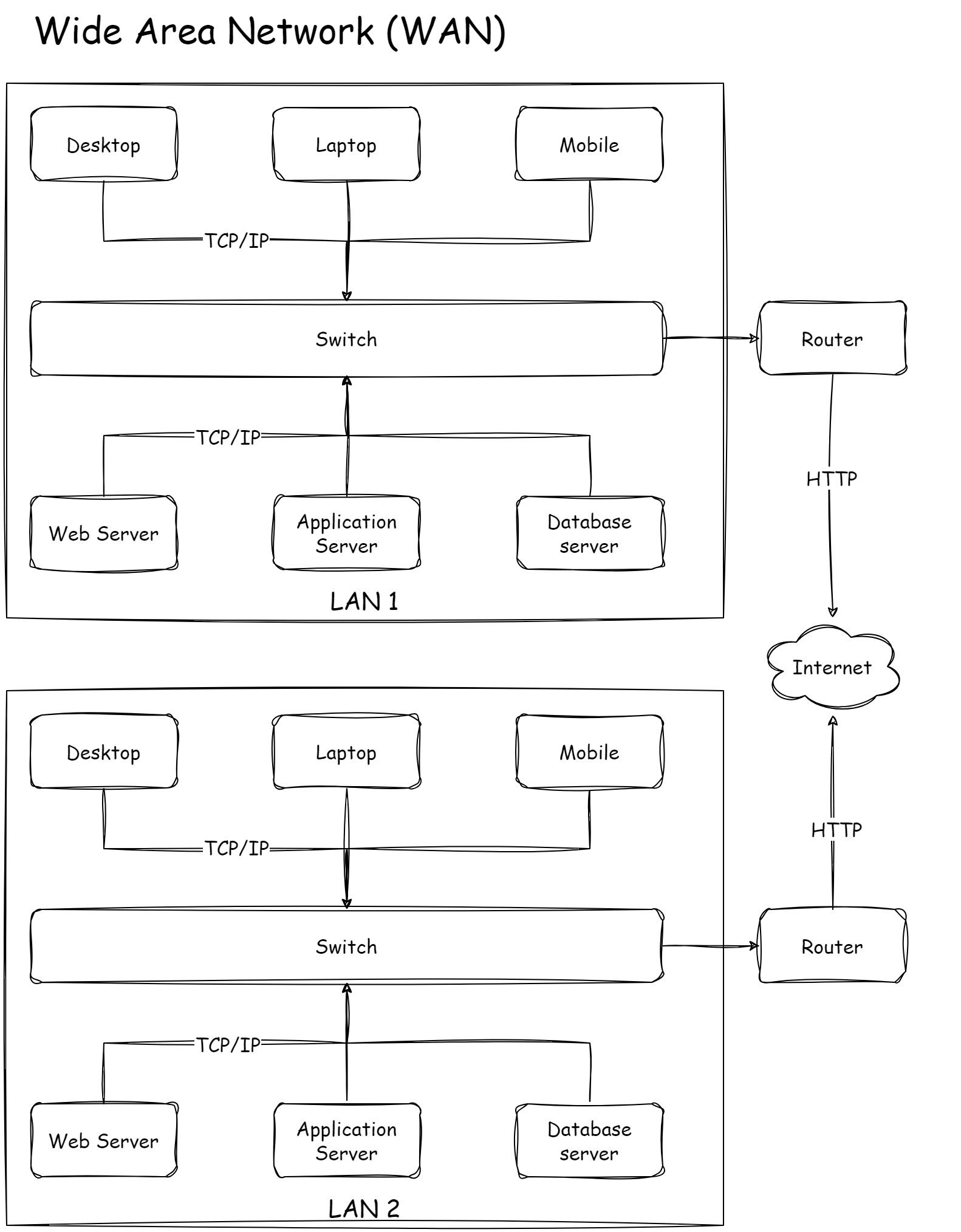
But what if we need to communicate with computers on a different LAN?
We then connect two LANs.
To do so, each LAN needs a router.
We connect the router of LAN 1 with the router of LAN 2 via a digital line.
Once connected, we now have a Wide Area Network or WAN for short.
Usually, behind each router, we also have a firewall that controls the access we allow into each LAN.
Global Area Network (GAN)
And what if we need to go even bigger and need our computers to “talk” to the whole world?
Easy!
We get another router that we then connect to an Internet Service Provider or ISP for short,
and we have a Global Area Network or GAN for short.
The Cloud
Before we change topics, I quickly want to address the new kid on the block, the Cloud.
Okay, it's not that new, but in the bigger picture, it kind of is.
So, what is the Cloud?
Like OPM is short for Other People's Money, I call the Cloud OPC which is short for Other People's Computers.
What do I mean by that?
When the Internet became mainstream, it became possible to run applications on servers that are not on-premise.
These servers are hosted in some buildings somewhere in the world.
Where, we as users, don't know and don't care.
Because we don't know where, we just call it the Cloud.
Disclaimer, these computers are not located miles above the earth in the clouds.
That's now if you exclude satellites, that is.
So, the Cloud is just a bunch of servers that run on a network other than your company's LAN.
You can rent some of that computer power to run some of your applications.
When done right, it saves you money as you only pay for the hardware and services you need.
But, boy, when done wrong, you pay a lot.
Now that the cloud honeymoon is over and reality set in,
there are many businesses that are moving back to on-premise servers or are settling for a hybrid solution,
that is some applications on premise and some in the cloud.
To be fair, the cloud is way more than just a bunch of other people's computers.
It is loaded with hundreds of services that can do all sorts of things.
Benefits of the Cloud
There are many benefits to using in the Cloud over on-premise servers:
- There is on-demand provisioning. This means you can be up and running in a matter of minutes instead of weeks. You simply spin up a server when you need one.
- Scalability is another big advantage. You can easily and quickly scale up or down as the need arises. Thus, during peaks, you can scale up to get more processing power and scale back again when things are not hectic. This can even be automated where these peaks and thighs are predictable. With on-premise hardware, you always have to cater to the worst-case scenario.
- You only pay what you use. If managed properly, this can result in big savings.
- The Cloud is built and managed by experts (I hope). Can you imagine the cost of having all that expertise on-premise?
- Lastly, you know exactly how many units of work/usage your applications consume. This allows for the optimization of services and resources, thus reducing costs.
The three biggest cloud providers are Amazon Web Services (AWS), Microsoft Azure, and Google Cloud. They primarily provide three types of service models:
Software as a Service (SAAS)
The SAAS model is the most complete and provides the user with networking, storage, servers, virtualization, operating system, middleware and applications.
All the user does is use the applications and manage the data.
Examples are Gmail, Dropbox, and Salesforce
Platform as a Service (PAAS)
The PAAS model provides the user with networking, storage, servers, virtualization, operating system and middleware.
The user provides the applications and the data.
Infrastructure as a Service (IAAS)
The IAAS model allows for more flexibility as it provides the user with networking, storage, servers and virtualization.
The user then has to provide the operating system, middleware, applications and data.
Although this may be the cheapest option, it is also the most labour-intensive.
People
The fifth and final component of Information Technology is the people themselves.
We can roughly divide the IT crowd into three groups:
Development
These are the programmers or software developers, software architects, system analysts, and so on.
Operations
These are the people that build the servers and network infrastructures, configure them and monitor and maintain them.
Security
This is a new group that has been added to IT. They focus on three important areas, namely governance, risk management, and compliance.
Governance
This means ensuring that all the activities, processes, and procedures (including IT) are in alignment with the company’s overall business goals.
Risk Management
Your company is at risk at all times. It may be cyberattacks, fire, theft by staff, etc. If something bad happens, how quickly can you recover? So, risk management is about identifying such risks and addressing them accordingly.
Compliance
Compliance is ensuring your company adheres to the mandated laws and regulations of your particular industry.
DevOps
You will encounter the term DevOps occasionally.
This is short for Development and Operations.
You will sometimes see the term DevSecOps to include security.
Wikipedia says, "DevOps is the integration and automation of software development and information technology operations.
DevOps encompasses the necessary tasks of software development and can lead to shortening development time and improving the development life cycle."
I strongly recommend you read The Phoenix Project.
It is a book in novel form explaining DevOps and the value it brings to organizations.
It's a great read.
Conclusion
Benjamin Franklin said one must be a Jack of all trades and a master of one (not a master of none).
Information Technology is a big field, and people usually specialize in either Dev, Sec, or Ops.
Become an expert in your area of choice but learn what you can about the other fields.
Next, we will look at the four components that make up Information Systems.
Spoiler alert!
We are going to look at only three components because Information Technology, which we have just covered, is one of the four components.
See you there!